<img height="1" width="1" style="display:none" src="https://www.facebook.com/tr?id=969792222525928&amp;ev=PageView&amp;noscript=1">

Self Service

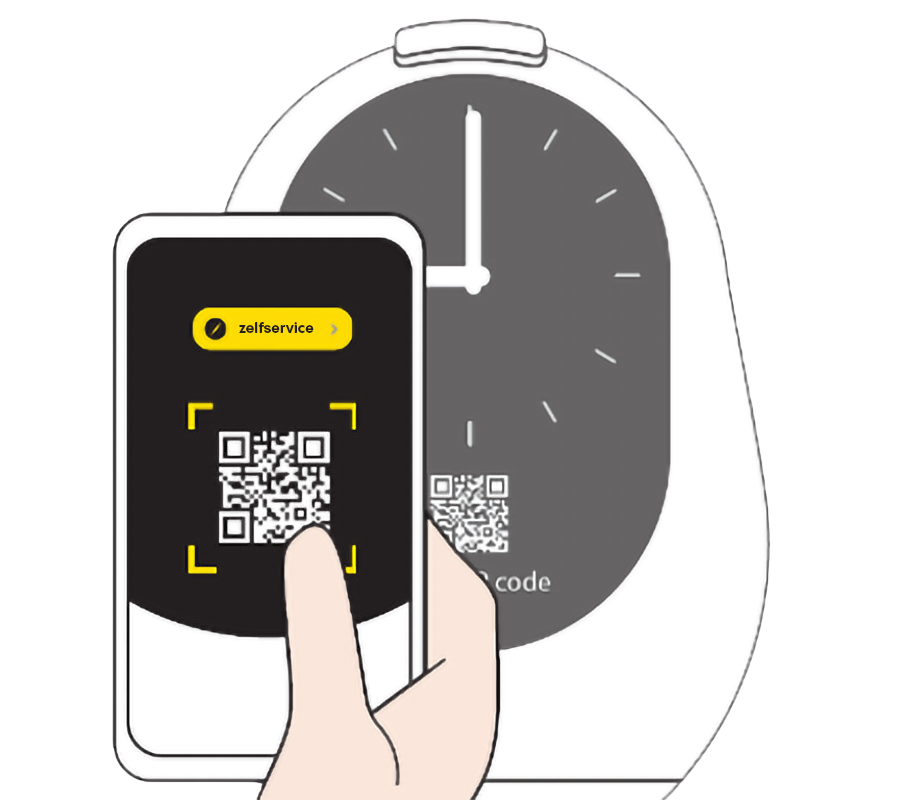
With Self Service, healthcare professionals can easily manage frequently used Medido settings and changes themselves. Simply scan the QR code on the screen with your smartphone or tablet to access Self Service directly. This means you no longer need to contact Customer Service for minor adjustments and can continue right away.


Fast, secure and no app required.

Zelfservice scan qr-code

Self Service features

Always available

View dispensing times

Up-to-date overview of dispensing times.

Access the Helpdesk

Quick answers to your questions.

Change basic settings

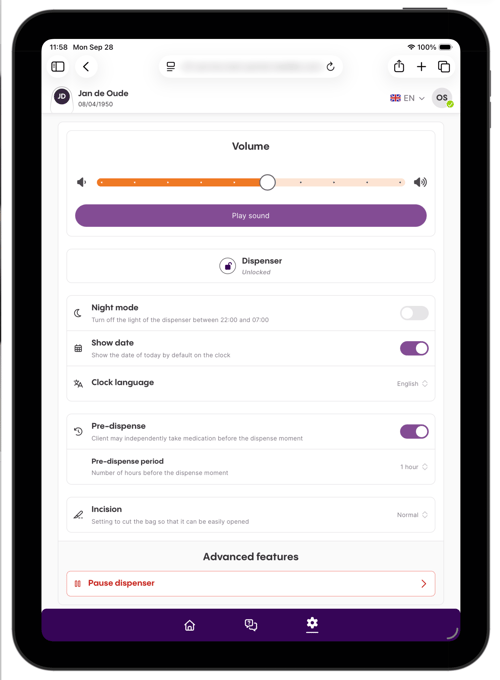
Volume, night mode, show date.

Back to top
Screenshot_2026-09-28_at_11_58_17_frosted (1)

After email verification

Dispense medication for travel

For use away from home (up to 7 days).

Pause dispenser

Temporarily pause for more than 7 days or if the duration is unknown.

Select next dispensing time

Match the schedule to the medication roll.

Volume below default setting

Set the volume lower than the default setting.

Lock/unlock

Lock/unlock the dispenser without a tag.

Change language setting

Easily change the language.

Incision pouches

Choose between no cut, normal or large. 


Set pre-dispense

Set pre-dispene and the time period.


Back to top

Instructional video

In this instructional video, we explain step by step how Self Service works. You’ll learn how to easily view dispensing times and adjust settings.


All the benefits at a glance

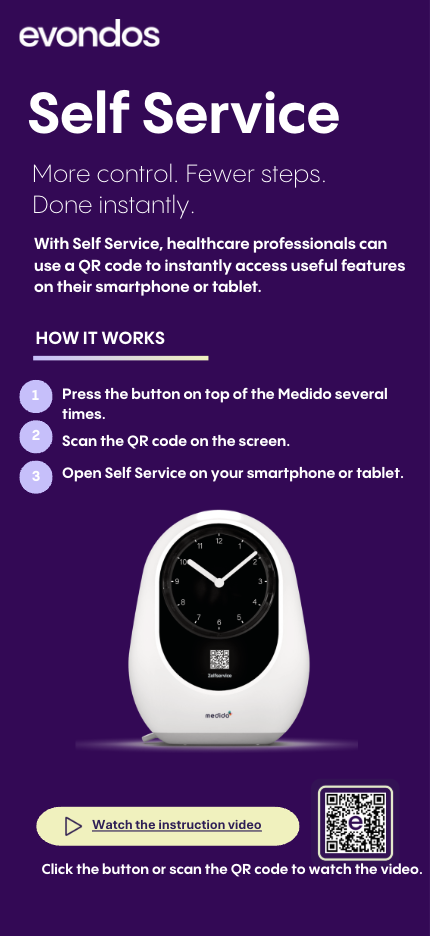
Self Service Flyer

This handy flyer explains what Self Service is and which changes you can make and when. Download the flyer using the button below.


Download flyer
Screenshot 2026-10-05 at 13.40.26

Frequently asked questions

How do I access Self Service?

Press the button a few times and a QR code will automatically appear on the display.

How do I scan the QR code?

Scan the QR code using the camera on your smartphone or tablet. A link will appear on your screen. Tap the link to start the QR activation service.


Do I need to install a specific app to scan the QR code?

The QR code works with most modern smartphones and tablets. Make sure your device has a working camera and that its software is up to date. If it doesn’t work, download a QR code scanner app from the App Store or Google Play Store.


Does the QR code work on all smartphones and tablets?

The QR code works on most modern smartphones and tablets. Make sure your device has a working camera and that the software is up to date. If you are unable to scan the QR code, please contact Medido Customer Service.

Why can’t I use the advanced features yet?

To use the advanced features, email verification is required. Please use your healthcare organisation’s email address for verification. Personal email addresses cannot be used.

What happens if the QR code is not recognised?

If the QR code is not recognised, check that the camera is properly pointed at the QR code and that the entire code is visible. Try scanning it in better lighting or clean the camera lens.

Email verification is not working, so I can’t use the advanced features.

For email verification, you must use a valid email address from your healthcare organisation. Personal email addresses cannot be used. If verification is still not possible after entering the correct email address, please contact Customer Service.

I would like to change the dispenser configuration. Is that possible?

Yes. With Self Service, you can adjust settings such as the dispenser volume or turn Night Mode on or off.


Back to top